Tag: home office layout

  • How to Arrange Office Furniture: A Practical Guide

    How to Arrange Office Furniture: A Practical Guide

    A home office can look finished and still feel wrong. The desk fits neatly against the wall, the camera points toward an attractive background, and every cable appears tidy. Then the workday begins: you twist toward a second screen, push the chair into a cabinet, stand up into a blocked walkway, and spend the afternoon working from a laptop that sits too low.

    How to arrange office furniture well is less about creating a symmetrical room and more about supporting real movement. Your chair needs room to move, your monitor needs a direct line in front of you, and your furniture must accommodate the fact that a home office may also be a dining area, guest room, or shared family space. The measurements below are practical benchmarks, not rigid rules. Your body, room shape, daily tasks, and household traffic still determine the final arrangement.

    Why Most Home Office Layouts Fail

    A remote worker recently described a familiar problem: the office looked excellent on a video call, but it became uncomfortable within an hour. The desk was against the longest wall, the monitor was tucked into the corner, and a bookcase filled the remaining open space. Visually, the room appeared efficient. Physically, the user had to rotate the neck toward the screen, reach around the monitor for paperwork, and pull the chair forward because the bookcase left little room behind it.

    That arrangement failed because it treated the room as a still photograph. People don't work in one fixed position. They sit, stand, turn to retrieve documents, move toward a printer, speak with someone at the doorway, and change tasks throughout the day. A layout that maximizes visible floor space can still create repeated twisting, reaching, and prolonged sitting.

    The laptop problem

    Remote workers often rely on a laptop without external peripherals. A recent compilation reports that 68% of work-from-home users use a laptop as their primary device without external peripherals, while only 30% have setups meeting basic ergonomic criteria. Those figures appear in work-from-home ergonomic risk guidance, and they help explain why a clean table-and-chair arrangement can remain physically inadequate.

    A laptop forces the screen and keyboard into one unit. Raise the screen to a more comfortable viewing height and the keyboard rises too. Keep the keyboard at a practical level and the screen often sits too low. A separate monitor, keyboard, or compact standing surface can give the room more flexibility without requiring a large office suite.

    Practical rule: Arrange the workstation around the positions you need to use, not the single position that looks most orderly.

    Appearance isn't a comfort test

    Neck discomfort affects roughly 45% to 60% of work-from-home populations, lower-back discomfort affects 40% to 55%, and shoulder discomfort affects 30% to 50%, according to the same remote-work risk-control source. These figures aren't a diagnosis for any individual, but they show why layout decisions deserve more attention than a pleasing background.

    Start with movement. Keep frequently used tools within easy reach, create a nearby place to stand, and prevent storage from forcing you to twist behind the desk. In a shared room, choose furniture that can move or change purpose. A foldable desk, lockable casters, nesting seating, and removable cable management can preserve the room's second use without making your work setup disposable.

    Measuring Your Space and Clearance Zones

    Measure the room before choosing a desk. Record wall lengths, door swings, window locations, outlets, vents, radiators, and any section of wall that can't accept furniture. A quick drawing on graph paper is enough, provided it shows the furniture footprint and the space needed to operate it.

    The Canadian Centre for Occupational Health and Safety, citing Government of Manitoba office-planning standards, uses approximately 6.7 square metres, or about 72 square feet, as a planning reference for a staff workstation. That is roughly 8 by 9 feet. The benchmark includes the workstation, chair movement, circulation, equipment placement, and privacy needs, so it is more than just the floor area occupied by the desk. See the CCOHS office-working-space guidance for the underlying planning reference.

    Map the operating envelope

    The most commonly missed measurement is the space behind the desk. A University of Washington ergonomics specification recommends at least 48 inches of floor clearance behind the desk's front edge for standing and re-entering the workstation. Mark that area on your plan. Then check whether a door, drawer, another chair, or a walkway cuts through it.

    A basic call-center workstation in the same CCOHS guidance measures 42 to 52 inches deep by 60 to 72 inches wide, or approximately 107 to 132 by 152 to 183 centimetres. Your home setup may be smaller, but the figures demonstrate why a desk that fits its own outline can still make the room unusable. Include the chair at full extension, not just the desk rectangle.
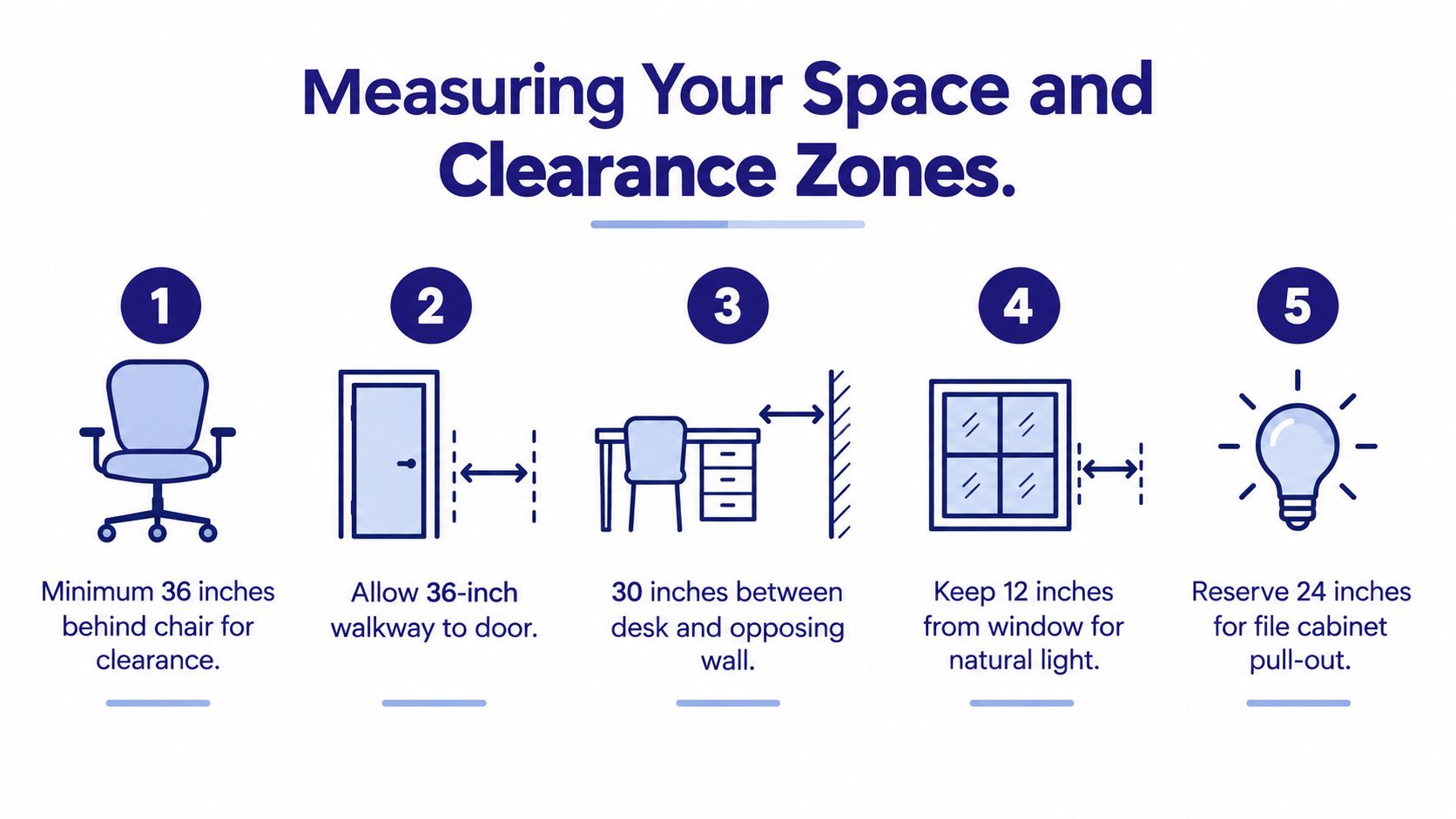
    An infographic illustrating five key clearance measurements to consider when arranging office furniture for optimal comfort and functionality.

    Measure use, not just walls

    Walk the route between the desk and the door, storage, printer, and any shared household feature. Open every drawer and cabinet on the proposed plan. If the room doubles as a guest room, also mark where a bed opens, where luggage is placed, and how someone reaches the window.

    Reserve the clearest route for entering and leaving the workstation. Put everyday tools close to the dominant work surface, while archived files and occasional equipment can sit farther away. If your chosen desk leaves no practical place for your chair to move back, it isn't a good fit, regardless of how attractive or compact it appears in a showroom.

    Zoning Your Room for Focus and Flow

    A functional office has distinct zones, even when the room is small. The primary work zone supports concentrated screen work. A storage zone holds files, paper, and equipment. A circulation zone protects movement. If the room supports collaboration, add a small meeting or social zone that doesn't cut through the focused-work path.

    This approach is more reliable than placing furniture around every wall. Research on workplace productivity identifies privacy, equipment proximity, quiet areas, crowding, interruptions, and informal meeting space as significant environmental influences. In one evaluation, privacy received a mean productivity score of +3.5 and equipment position +3.7, while the reported effect of office environments on personal productivity was estimated at about 20% in the workplace productivity review.pdf). The figures don't determine your home office, but they support a clear principle: furniture placement affects how easily you can focus and reach what you need.

    Give each zone a job

    Place the primary desk in the quietest part of the room, away from the route people use to reach the kitchen or hallway. Keep storage close enough for daily access, but outside the chair's operating envelope. A low cabinet beside the desk may work better than a tall unit behind it, provided it doesn't narrow the entry route.

    A guest chair should sit near the work zone without becoming an obstacle between the desk and the door. In a dining area, that may mean positioning a compact desk along a quiet wall and using a nesting chair that returns to the dining table after work. In a guest room, a desk with lockable casters can move aside when visitors arrive, but only if the cable connections can be disconnected cleanly.

    Design for different users

    Shared rooms need more than a clear walkway. Drawers and outlets should be reachable by each person using the space. Furniture should leave enough turning and approach room for people with different mobility needs, rather than assuming that everyone can step around a tight corner or pull a chair straight backward.

    Open-plan arrangements can look spacious but often reduce privacy and increase distraction. A screen, acoustic panel, bookcase, or enclosed storage unit can define the focused zone without permanently dividing the room. Don't use a tall divider to create privacy if it blocks a window, outlet, or exit route.

    The useful test is simple: can one person work without interrupting another person's route? If the answer is no, separate the activities before adding more furniture.

    Positioning Your Desk and Monitor Ergonomically

    Set up the workstation in sequence. First measure the room and reserve the circulation path. Then position the desk so you can enter, stand, and push the chair back without obstruction. Center the primary monitor on the main work surface. Only after that should you adjust the chair, keyboard, and monitor to your body.

    The University of Washington specification recommends a work surface at least 30 inches deep, with the monitor centered on the primary surface. It also identifies a chair backrest of at least 17.7 inches high and furniture that meets ANSI/BIFMA requirements as useful design benchmarks. The same document gives complementary benchmarks of 680 to 720 millimetres for work-surface height, minimum surface dimensions of 1,500 by 900 millimetres, at least 550 millimetres of leg depth, and 800 millimetres of leg width. Review the University of Washington ergonomics furniture specification when comparing desks or planning a custom arrangement.
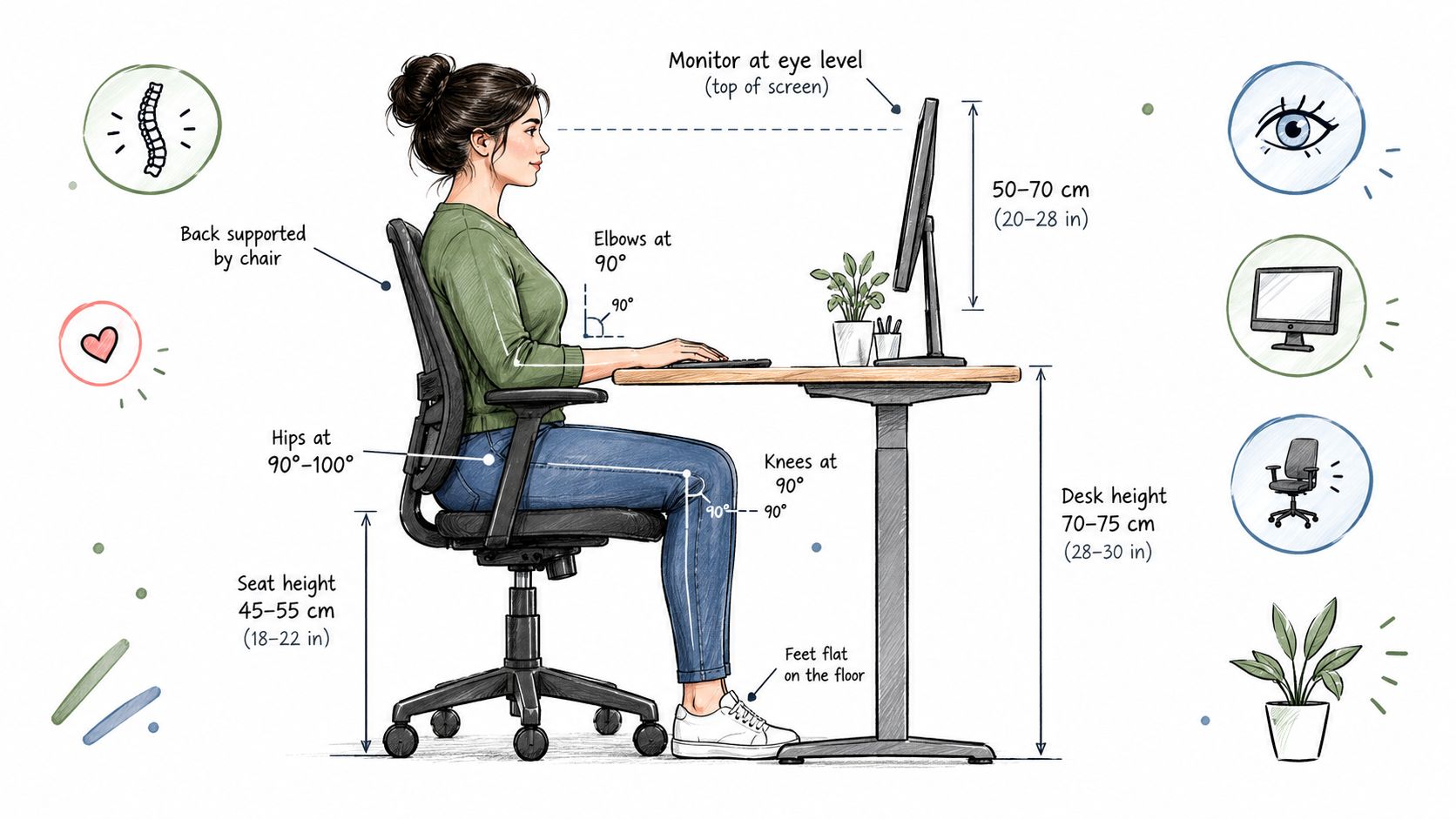
    A diagram illustrating the correct ergonomic posture for sitting at a desk and using a computer.

    Center the screen before arranging accessories

    OSHA recommends placing the monitor directly in front of you and at least 20 inches away, with a generally preferred viewing distance of 20 to 40 inches. The top of the screen should be at or slightly below eye level, and the monitor shouldn't sit more than 35 degrees to the left or right. These benchmarks are set out in OSHA's computer-workstation desk guidance.

    For two screens, place the primary monitor directly in front of your body. Put the secondary screen beside it within a comfortable viewing angle. Don't place the main monitor in the deep corner of an L-shaped desk merely because the corner appears to be unused. Unless your chair and legs can align squarely with that corner, the position encourages persistent rotation.

    Make the chair the adjustable element

    Sit in the chair before finalizing desk height. Adjust the chair so your feet rest securely and your back is supported, then bring the keyboard and monitor into position. A fixed desk may require a footrest or monitor riser, while a height-adjustable desk can accommodate more than one user.

    Route cables along the desk frame or through an under-desk tray. Leave enough slack for normal chair movement and, if the desk rises, for the full range of height adjustment. A cable that crosses the chair zone turns a tidy arrangement into a trip hazard and can pull equipment when you move.

    Layout Strategies for Different Room Sizes

    Room size changes the furniture strategy, but it doesn't change the basic priorities. Every arrangement still needs a direct monitor position, a usable chair envelope, a clear route, and storage that doesn't compete with the work surface. The difference is how many activities can receive their own zone.

    For a small room or shared corner, use a compact desk along a quiet wall and keep the floor as open as possible. A wall-mounted shelf, vertical cabinet, or nesting storage piece can replace a wide credenza. A compact sit-stand surface or nearby counter can provide a place to change position without requiring a second full desk. Choose a chair that tucks in without blocking the walkway, but don't sacrifice the clearance needed to stand and re-enter.
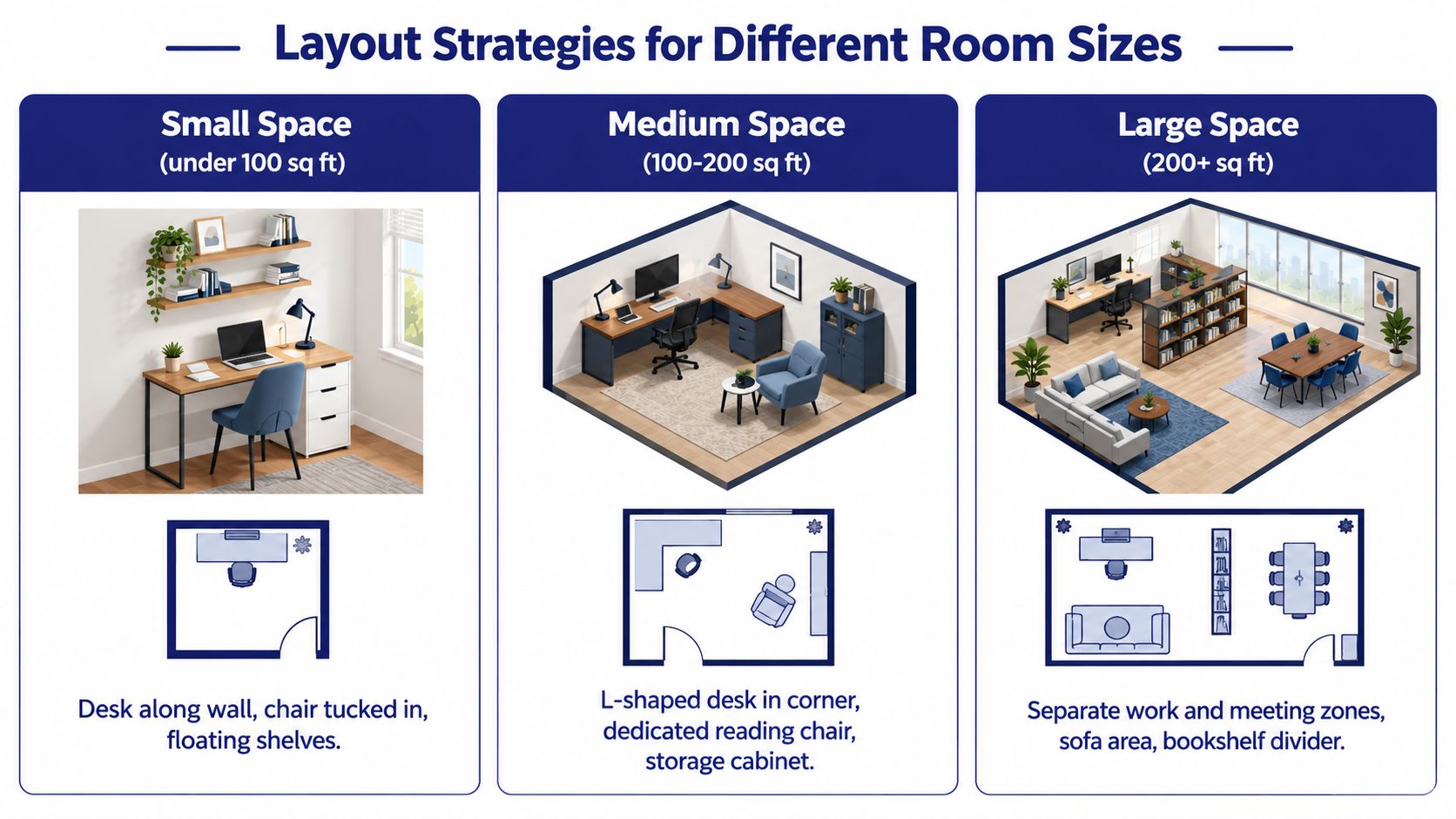
    A diagram illustrating optimal office furniture layout strategies for small, medium, and large room sizes.

    Match the layout to the room

    A medium room can support a clearer division between focused work and secondary activities. An L-shaped desk may work if the primary monitor sits on one wing and the return holds paperwork, a laptop, or a printer. A reading or meeting chair can occupy a separate corner, but it shouldn't sit in the route to the desk or storage.

    A large room gives you permission to separate work from meetings, not permission to fill every wall. Modular storage, a small sofa, or a bookshelf divider can define distinct areas while preserving circulation. For two users, place workstations so screens aren't aimed directly into a high-traffic path and chairs don't collide when people stand.

    Room situation Furniture priority What to avoid
    Small or shared space Compact desk, vertical storage, movable seating Deep cabinets that consume the chair zone
    Medium room Primary desk, separate storage, occasional seating Mixing every activity around one work surface
    Large room Distinct work and meeting zones, modular storage Scattering furniture so routes become indirect

    Some households need to remove work equipment between uses. In that case, streamline office space wisely by choosing pieces that fold, nest, roll, or store work materials securely rather than leaving a permanent desk in the middle of the room.

    Integrating Lighting and Acoustic Treatments

    A desk's position relative to the window can determine whether the monitor is comfortable to use. Placing the screen directly in front of a bright window creates strong contrast, while placing it directly opposite the window can produce reflections. A position perpendicular to the window often gives you useful daylight from the side without making the screen the brightest object in view.

    Keep the monitor orientation in mind before placing storage. A tall cabinet beside the desk may block useful daylight or cast a shadow across the keyboard. A low cabinet can provide access without creating the same visual barrier. Window coverings should control glare without turning the work area into a dark corner.

    Layer the light

    Use ambient room lighting for general visibility and task lighting for paperwork or evening work. Place a task lamp where your writing hand and monitor don't create competing shadows. If you use a monitor arm, check that it can move without hitting a shelf, wall, or window trim.

    The CCOHS planning guidance identifies 50-inch-high screens as a useful benchmark where seated visual privacy is needed. In a home, a screen of that height may not suit every room or user, so treat it as a planning reference rather than a requirement. A lower screen, side-facing desk, or partial acoustic screen may provide privacy without closing off the whole room.

    Use furniture to soften sound

    Bookshelves filled with books, rugs, upholstered seating, and acoustic panels can reduce the hard-surface quality that makes household noise travel. Place sound-absorbing elements between the workstation and the main source of interruption, but don't create a narrow tunnel around the chair.

    Acoustic treatment can't compensate for a desk located in the busiest passage. Move the workstation first, then use a bookcase or panel to refine privacy. A layout that combines distance, visual screening, and softer surfaces usually feels calmer than one that relies on a single decorative divider.

    Testing Your Layout Before Delivery Day

    Don't judge the plan from a scaled drawing alone. Mark the proposed furniture on the actual floor with painter's tape, including the desk surface, chair position, storage doors, and the full route to the entrance. Use boxes or folded blankets to suggest the height and depth of large pieces, because a taped outline won't show how a tall cabinet affects light or sightlines.

    Run the room like a workday

    Test the arrangement in a deliberate order:

    1. Enter and sit: Walk into the room normally, pull the chair out, sit down, and push it back. Notice whether your legs, chair, or feet meet anything.
    2. Change position: Stand, reach toward the monitor, and step away from the desk. If you need to twist around furniture, revise the layout.
    3. Use storage: Open drawers and cabinet doors fully. Remove a file or supply without stepping into the main walkway.
    4. Change tasks: Move from typing to writing, printing, charging a device, or joining a video call. Each task should have a sensible route.
    5. Test another person: Ask someone to enter, sit in a guest chair, or pass behind you. Shared-space problems often appear only when two people move at once.
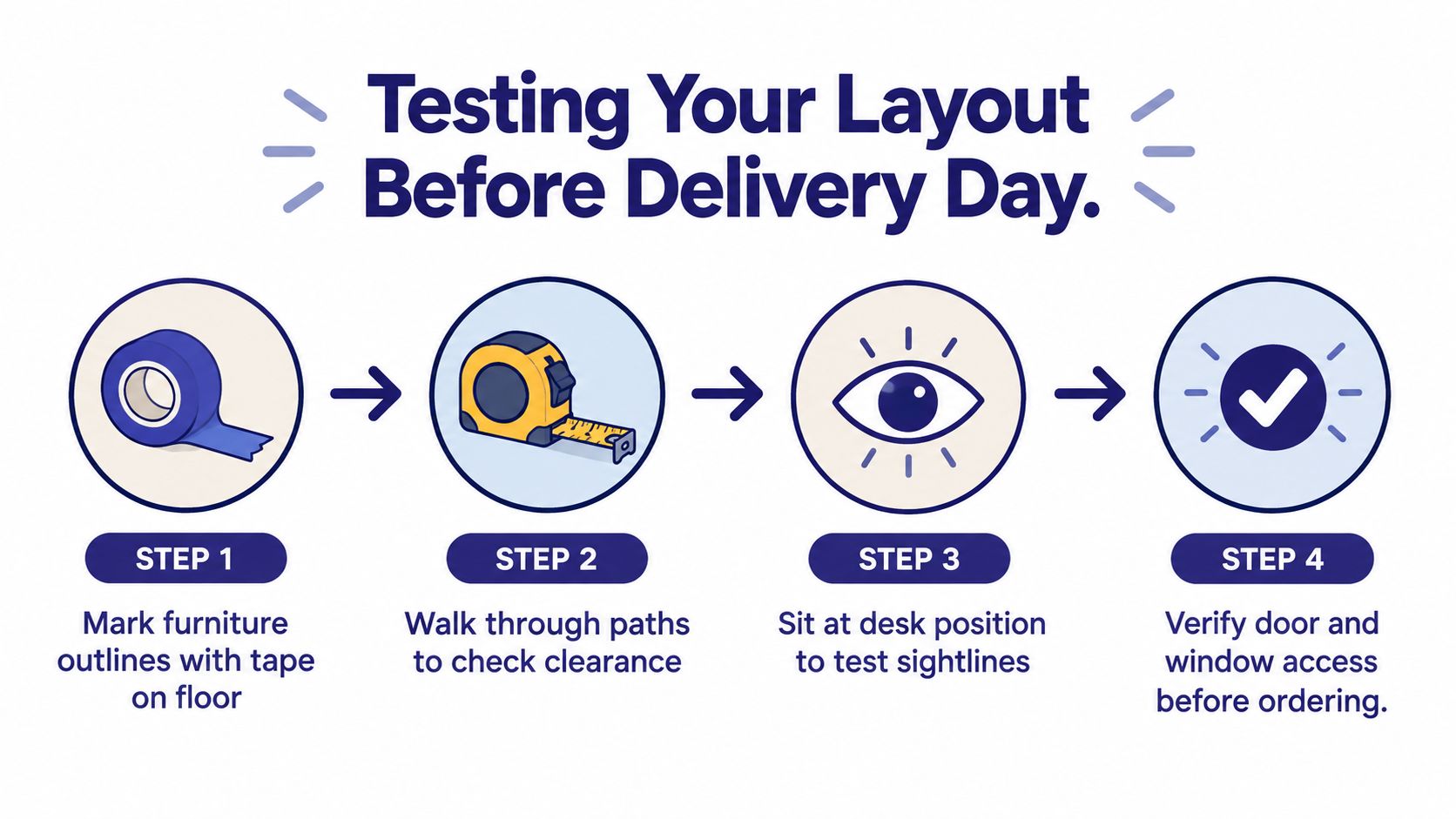
    A four-step infographic showing how to plan office furniture layouts by marking floors and testing paths.

    Check the details drawings miss

    Look at the monitor from the taped chair position. Is it directly in front of you, or are you already turning your neck? Check the window from the seated and standing positions. Confirm that doors open fully, outlets remain reachable, and cables can travel without crossing the chair or walkway.

    Test the room at the busiest time of day. A quiet spare room can feel functional in the morning and disruptive when family members use the hallway, dining table, or adjacent living area. If the office doubles as a guest room, tape the bed footprint as well and verify that the work setup can be cleared without dismantling the entire room.

    Before delivery: If the taped version feels cramped, the finished furniture won't make it feel larger.

    Digital planning tools are useful after the physical test, not instead of it. A room planner can compare desk orientations, storage positions, and seating options while you verify dimensions. Woodstock Furniture & Mattress Outlet's Design Center and room-planning tools can help shoppers explore home-office configurations before committing to a heavy piece, while an in-person consultation can identify practical issues that a screen view may miss.

    Furniture advertising should describe measurable characteristics rather than unsupported superlatives. The Federal Trade Commission's advertising-substantiation policy explains that advertisers need a reasonable basis for objective claims, including claims implied by an advertisement. Apply the same standard to your purchase decision: compare actual dimensions, adjustability, materials, storage capacity, and return or warranty terms instead of relying on words such as “best” or “highest quality.”


    Visit Woodstock Furniture & Mattress Outlet to explore home-office desks, storage, seating, and room-planning support with your measurements in hand. Bring the taped layout or room dimensions so the team can help you compare configurations based on movement, shared-space needs, and everyday use rather than appearance alone.
  • How to Organize a Home Office: Create a Productive, Clutter-Free Space

    How to Organize a Home Office: Create a Productive, Clutter-Free Space

    If you've ever felt like your home office is working against you, you're not alone. The secret to transforming it from a source of stress into a hub of productivity isn't complicated. It really boils down to a simple, practical flow: first, define your space and declutter with intention, then create a functional layout with smart work zones, and finally, select furniture and systems that solve your specific problems.

    Your Blueprint for a Productive Home Office

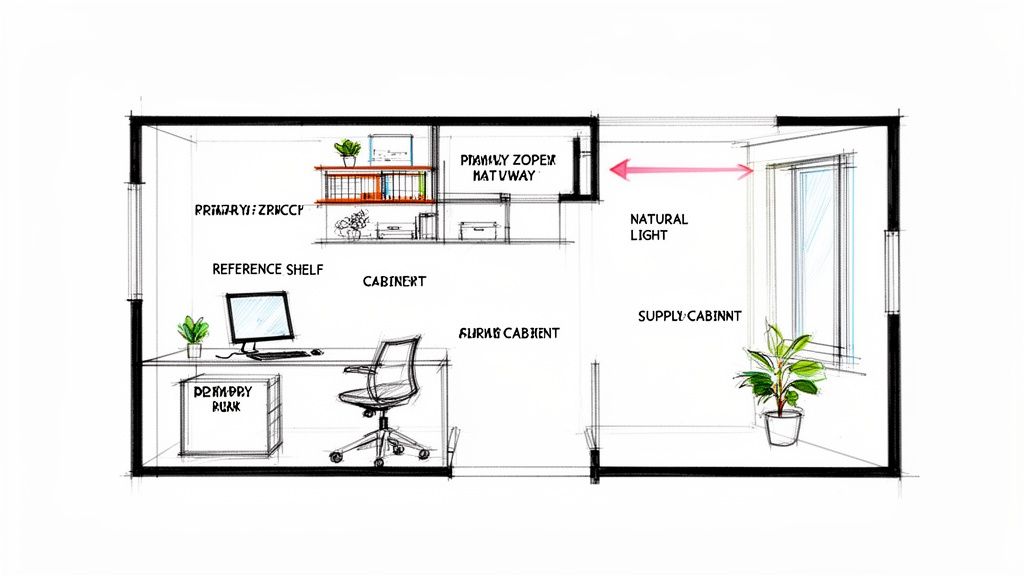
    A detailed top-down sketch illustrating an organized home office layout with desk, chair, shelves, and natural light.

    Having a well-organized home office has shifted from a "nice-to-have" to a necessity for focus and well-being. With so many of us in remote or hybrid roles, carving out an effective workspace at home is a common challenge. In fact, it's projected that by 2025, over 32.6 million people will be working remotely, making dedicated, organized spaces more crucial than ever.

    The stakes are higher than you might think. Some studies even suggest that disorganized environments can reduce focus by as much as 40%, directly impacting your daily output and mental clarity. This guide is designed to move you beyond just tidying up. We're going to tackle the core issues of clutter, distraction, and discomfort that drain your energy, step-by-step. Before you start, it’s worth understanding the profound importance of a dedicated work-from-home space.

    This isn't about chasing a sterile, picture-perfect office. It’s about building a practical workspace that genuinely supports how you work.

    The 5 Pillars of Home Office Organization

    To give you a clear roadmap, we've broken down the process into five foundational pillars. Think of this as your game plan. Each step logically builds on the last, helping you create a comprehensive system for lasting organization and a more productive workday.

    Pillar Primary Goal Key Action
    Planning & Decluttering Create a clean slate and clear vision. Sort items into keep, donate, or discard piles.
    Layout & Zoning Design a workflow-friendly space. Assign specific areas for tasks like computer work, supplies, and reference.
    Furniture Selection Solve problems with functional pieces. Choose a desk, chair, and storage that fit your needs and space.
    Systems & Ergonomics Enhance comfort and efficiency. Manage cables and adjust your setup for proper posture.
    Styling & Maintenance Personalize and sustain your setup. Add decor and establish simple daily/weekly tidying routines.

    With these pillars as our guide, let's dive in and start building an office that truly works for you.

    Clearing the Clutter Before You Build

    Illustration of three labeled bins: 'KEEP' with papers, 'DONATE' with electronics, and 'DISCARD' with a coffee mug, demonstrating organization.

    Before you can even think about new desks or storage solutions, you have to address what’s already in the room. Trying to set up a functional office around piles of existing clutter is a recipe for failure—it’s like trying to paint over a cracked wall. You’re just hiding the problem, not fixing it.

    The most important first step is a thorough decluttering session. This isn't just about tidying up; it's about making deliberate decisions to create a clean slate. Getting a handle on this process is key, and there's actually a practical guide on how to declutter your home that breaks it down well.

    To start, grab three boxes or bins and label them: Keep, Donate, and Discard.

    The Three-Bin Sorting Method

    As you pick up every single item in your office—from pens to paperwork to that unused gadget you bought three years ago—you have to make a call right then and there. No "maybe" pile. That's just procrastination in disguise.

    • Keep: This pile is only for things you use regularly and are essential for your work. Your main laptop, your go-to notebook, critical documents. If it directly helps you get things done, it can stay.

    • Donate: What's still perfectly good but you just don’t need? That old monitor, extra binders you never opened, or business books you've already read. These items can find a new life somewhere else.

    • Discard: Now for the satisfying part. This is for the broken electronics, the collection of dried-up pens, and outdated paperwork that needs to be shredded. It's time to reclaim your space.

    A useful rule of thumb: if you haven't touched an item in the past year, it's a prime candidate for the donate or discard pile. This helps you detach emotionally and makes it much easier to let things go.

    Don't Forget the Digital and Paper Clutter

    Your physical space is only half the battle. Digital clutter can be just as distracting. A desktop covered in random files or an inbox with thousands of unread emails creates mental noise. Set aside an hour to create a logical folder system and clean up your digital world. A tidy screen leads to a focused mind.

    And then there's the paper. Stacks of it can feel suffocating. Many people have found freedom by going paperless—scanning important documents and saving them digitally. Not only does this clear off your desk, but finding what you need becomes much faster. For the hard copies you absolutely have to keep, a simple filing cabinet is essential.

    Once you’ve cleared everything out, the trick is to keep it that way. The “one-touch rule” for anything new that comes into the office is a helpful habit. Deal with mail, notes, and files the moment they cross your desk—file it, scan it, or toss it. This small change transforms organization from a huge project into a simple, sustainable daily habit.

    Designing a Smarter Layout with Work Zones

    Okay, you’ve cleared the clutter, and now you have a blank canvas. This is where the process becomes more creative. The goal now is to put things back in a way that actually makes your workday easier, not just prettier. A great way to do this is by thinking of the office not as one big room, but as a collection of work zones.

    This is a technique professional organizers use, and it’s a game-changer. It’s all about dedicating specific areas to specific types of tasks. Even if your "office" is just a small corner of the living room, you can still mentally (or even physically) divide the space to create a much better workflow. This simple shift in how you see the space is a cornerstone of learning how to organize a home office that works for you, not against you.

    Identify Your Core Zones

    Most home offices boil down to three main zones. Of course, you can tweak this based on what you do for a living, but this framework is a solid starting point for almost everyone.

    • The Primary Work Zone: This is your command center. We’re talking about your desk, your chair, your computer, and anything else you touch constantly all day long. This spot should be the most comfortable and easiest to get to in the entire room.

    • The Reference Zone: Think of this as your office library. It’s where you keep things you need, but not every five minutes. This could be your filing cabinet, bookshelves holding manuals or project binders, or storage for long-term client materials. You want it close enough to grab what you need without a hassle, but not so close that it’s crowding your main desk area.

    • The Supply Zone: This is mission control for all your office supplies—your printer, scanner, extra paper, pens, paper clips, you name it. Keeping all these items together means you’re not digging through three different drawers just to find a sticky note. It's a good practice to place this zone slightly out of the main path you walk through the room.

    Pro Tip: Before you start moving furniture around, sketch out your ideas. Grab a piece of paper or use a simple online room planner. This lets you experiment with different layouts and see how your zones fit together without breaking your back. It's a small step that saves a lot of time and frustration later.

    Practical Tips for Arranging Your Space

    Once you know what your zones are, placing them strategically can make a huge difference in your focus and productivity. You want to create a layout that just feels right, removing any little annoyances that pull you out of your work.

    Think about the natural flow of the room itself. If you can, place your desk where it gets good natural light, but be mindful of glare on your screen. Numerous studies show that natural light can boost your mood and productivity.

    Also, consider the "work triangle" concept, just like in a kitchen. The path between your main desk (work zone), your filing cabinet (reference zone), and your printer (supply zone) should be short and clear. This kind of logical setup means fewer wasted steps and less time getting distracted, which helps the whole day feel more organized and less chaotic.

    Choosing Furniture That Truly Solves Problems

    Alright, you've decluttered, you've measured, and you have a solid layout in mind. Now it's time to select the furniture. This isn't just about filling the space. The goal is to choose pieces that actively solve your workflow problems.

    Think of your furniture as the essential tools for your trade. You wouldn't use a wrench to hammer a nail, so why use a stiff dining chair for an eight-hour workday? Using the wrong tools leads to frustration, discomfort, and a messy process—exactly what we're trying to fix. The right desk, a truly supportive chair, and smart storage are the three pillars that will make or break your new home office.

    Finding the Right Desk and Chair

    Your desk is command central, so its size and shape need to align with how you actually work. Do you need to spread out blueprints and paperwork next to your dual monitors? An L-shaped desk could be a game-changer. If you’re working with a smaller footprint or want the health benefits of changing positions, a standing desk or a simple, compact writing desk might be a good fit.

    The chair, however, is even more critical to your day-to-day well-being. Think about it: many office workers spend thousands of hours sitting every single year. From that perspective, an ergonomic chair isn't a luxury; it's a practical investment in your own health. Be sure to look for features like adjustable height, proper lumbar support, and armrests that can be set to the same height as your desk. A good chair doesn't just feel comfortable—it actively reduces strain and helps you stay focused.

    Your home office furniture should be a solution, not a compromise. If your current chair causes back pain or your desk feels constantly cramped, it’s actively working against you. Investing in pieces designed for the work you do is an investment in your own productivity and comfort.

    Smart Storage Is More Than Just Shelves

    Good storage isn't just about stashing your stuff; it's about making things orderly and easy to find. Open shelving is great for books, binders, and a few decorative pieces you want to display. But for the less-sightly essentials—like reams of paper, extra cables, or ink cartridges—a cabinet with doors is helpful for hiding the chaos. And if you handle any important physical documents, a filing cabinet is still a must-have.

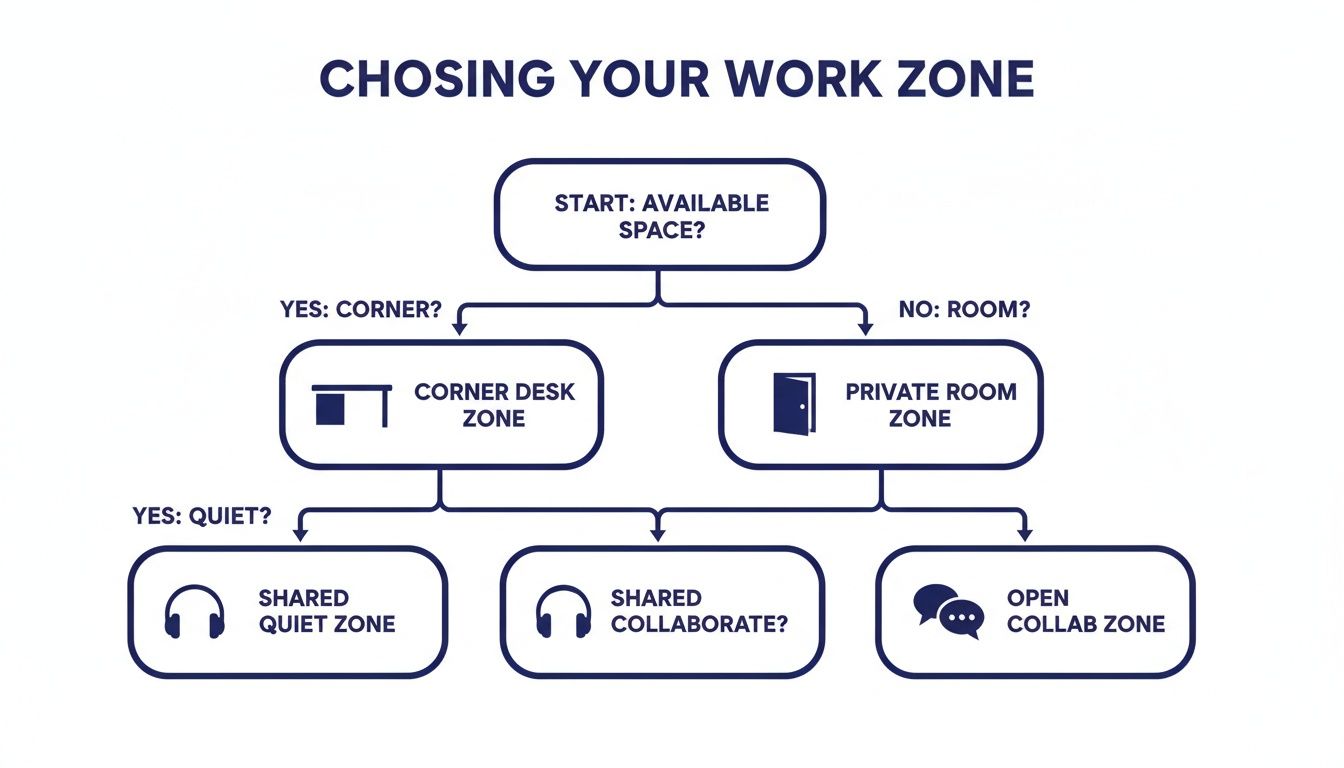
    This little flowchart can help you think through how your specific work zone should influence your furniture choices.

    A flowchart guiding users to choose a suitable work zone based on available space, privacy, and quiet needs.

    As you can see, whether you have a whole dedicated room or just a corner of the living room will point you toward different solutions. A dedicated space lets you prioritize function, while a shared zone means you need to be smarter about the footprint.

    Also, don't forget to think vertically! Tall bookcases or modular shelving units are brilliant for maximizing storage without eating up precious floor space. They also draw the eye upward, which can make a smaller room feel bigger.

    To help you get a clearer picture of what's out there, we've broken down a few common storage solutions and the problems they solve.

    Home Office Storage Solutions Compared

    Storage Type Best For Space Consideration
    Filing Cabinets Keeping important documents, client files, and sensitive paperwork organized and secure. Can be bulky; look for under-desk models or low-profile lateral files to save floor space.
    Bookcases Displaying books, binders, and decor. Keeping frequently used reference materials within arm's reach. Tall, narrow designs are perfect for smaller rooms and making the most of vertical space.
    Credenzas/Buffets Hiding bulky items like printers and scanners, plus stashing office supplies behind closed doors. Offers a large, useful surface for extra workspace or display area. A very versatile piece.
    Cube Organizers Highly flexible storage for supplies, project bins, books, or just about anything else. Extremely customizable with fabric bins and inserts. They fit well in almost any space.

    By focusing on function first, you'll end up with a workspace that not only looks great but, more importantly, feels great to work in day after day. This is the final piece of the puzzle to creating an organized and productive home office.

    Taming Cables and Mastering Ergonomics

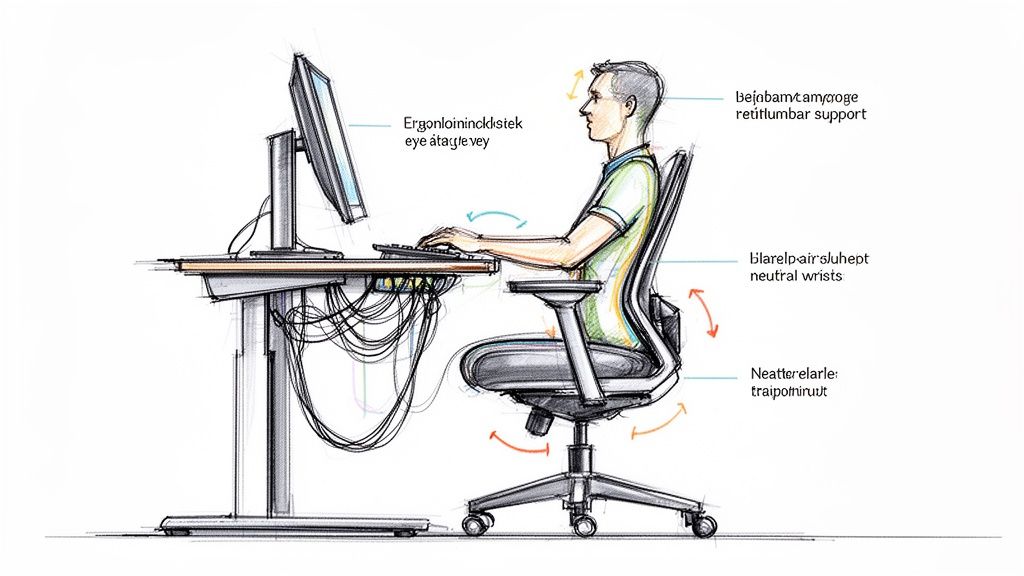
    Detailed sketch demonstrating ergonomic computer workstation setup and correct body posture.

    Okay, let's talk about the two issues that can undermine even the most perfectly planned home office: the cable mess under your desk and the slow-burn discomfort of bad posture.

    You can have a beautiful desk and the perfect layout, but a messy web of cords makes a space feel unfinished and attracts dust. Worse yet, an improper ergonomic setup can lead to nagging neck, back, and wrist pain that completely drains your focus.

    The good news? Fixing both of these problems is easier than you think and makes a massive difference in how your office feels and functions every single day.

    Conquering Cable Chaos

    That nest of wires lurking under your desk is more than just an eyesore. It’s a pain every time you need to unplug something and makes cleaning difficult. Taking just 30 minutes to wrangle them will make your whole workspace feel cleaner and more intentional.

    Here are a few go-to tools for the job:

    • Cable Ties or Velcro Straps: The simplest first step. Grouping related cords—like everything for your monitor—instantly calms the chaos.
    • Cable Sleeves: These are fantastic. They’re basically fabric tubes that wrap around a whole bundle of cords, creating one clean channel from your desk to the outlet.
    • Adhesive Cable Clips: These are great for running individual cords along the back edge of a desk or down a table leg. It keeps them completely invisible.
    • Under-Desk Cable Tray: This is an excellent solution. It’s a small metal basket that screws to the underside of your desk, getting power strips and chunky adapters up off the floor entirely.

    Just start by unplugging everything, perhaps labeling each cord so you know what's what, and then neatly route them back using one of these solutions. You'll be amazed at how much calmer the space feels.

    Setting Up an Ergonomic Workstation

    Ergonomics isn't some fancy buzzword that requires expensive gear. It’s simply about arranging your workspace to fit your body's natural posture, not forcing your body to fit your workspace. Many people deal with the consequences of poor ergonomics, and small tweaks can prevent long-term strain.

    The goal here is to create a “neutral” body position, where your joints are all naturally aligned and not stressed.

    A well-adjusted workspace reduces physical stress, which in turn frees up mental energy for your actual work. Think of it as removing a constant, low-level distraction you might not even realize is there.

    Run through this quick checklist to get your setup dialed in for comfort:

    • Monitor Height: The top of your screen should be at or just a smidge below eye level. You shouldn’t have to look up or crane your neck down to see. If it's too low, a monitor stand or even a stack of sturdy books works wonders.
    • Chair Position: Sit all the way back in your chair so your lower back is supported. Your feet should be flat on the floor with your knees at roughly a 90-degree angle. Adjust your chair height until your elbows are also at a 90-degree angle when your hands are on the keyboard.
    • Keyboard and Mouse: Keep them close. You should be able to use them with relaxed shoulders and your elbows near your body. If you're reaching way forward, you’re creating tension in your neck and shoulders that will build up over the day.

    Making these small, intentional adjustments can completely change how you feel at the end of the workday. It transforms your office from just a place you work into a space that genuinely supports your well-being.

    Keeping Your Newly Organized Workspace Tidy for the Long Haul

    Let's be honest, organizing your home office is one thing. Keeping it that way is a whole different ballgame. The real victory isn't just the big initial purge—it's stopping that sneaky clutter from creeping back in.

    The secret is to build a few simple, consistent habits that prevent those paper piles and tangled cords from ever taking root. You don't need to block off a whole Saturday every month for a massive overhaul. Instead, a few minutes each day combined with a quick weekly tune-up is all it takes to maintain that calm, productive space you worked so hard to create.

    Nail the End-of-Day Reset

    The single most effective habit you can build is the 5-minute end-of-day reset. Before you shut down your computer and officially clock out, take just a few moments to return your workspace to a clean slate.

    • Clear Your Surfaces: Put away pens, notebooks, and any stray papers that have landed on your desk.
    • Wipe It Down: A quick swipe removes dust and coffee rings.
    • Sort the In-Tray: If you have a designated spot for incoming mail or notes, give it a quick sort.
    • Straighten Up: Push in your chair, tidy your keyboard and mouse. It’s a small detail that makes a big difference.

    This little ritual takes almost no time but pays off significantly. Walking into a clean, ready-to-go workspace in the morning can completely eliminate that feeling of starting the day already behind schedule.

    Consistency is so much more important than perfection here. The goal isn't a sterile, magazine-shoot office; it's a functional space that requires minimal effort to keep up because you're tackling small messes before they can become big problems.

    Carve Out Time for a Weekly Review

    To back up your daily reset, schedule a short 15-minute weekly review. Think of this as your chance to handle the things that pile up over a few days, like filing new documents or restocking your printer paper.

    Use this time to shred unnecessary paperwork, file away anything you've scanned, and just make sure your supply zone is prepped for the week ahead. By making these little routines a non-negotiable part of your schedule, you'll find that staying organized stops being a chore and simply becomes part of how you work.

    Still Have Questions? Common Considerations for Home Offices

    Even after you've got a game plan, a few questions can pop up right when you think you're finished. That's totally normal. Let's tackle a couple of the most common home office considerations.

    How Can I Organize a Small Home Office Corner?

    When you’re short on square footage, the only way to go is up. Think vertically.

    Wall-mounted shelves, floating desks, and tall, skinny bookcases can give you tons of storage without eating up precious floor space. Then, for the desk itself, use organizers and drawer dividers to make sure every single inch is working for you.

    What Are Some Budget-Friendly Organization Tips?

    Getting organized doesn’t have to drain your wallet. Some of the best solutions are things you might already have.

    Repurpose old jars or mugs to hold pens, scissors, and other supplies. You can find simple pegboards that give you a huge amount of flexible vertical storage. Even basic filing boxes can work wonders for stray papers. The real secret isn't buying expensive containers—it's creating a system that works for you.

    Remember, the whole point of getting organized is to make your life easier and your work more efficient. It's not just about aesthetics; a tidy space genuinely makes you more productive. In fact, proven systems like '5S'—Sort, Set in order, Shine, Standardize, Sustain—have been shown to deliver 20-50% efficiency gains, a principle that works just as well at home. You can dig into more stats about how organization impacts remote work on yomly.com.


    From figuring out the layout to picking a desk and chair, putting together a home office that you love to work in can be a really satisfying project.

    If you hit a snag or just need some help finding the right furniture to solve your unique workspace challenges, our team at Woodstock Furniture & Mattress Outlet is here to help. Come on down to one of our showrooms and let's find the perfect home office solutions for you.