A Posturite summary of workstation pain research reports that, in a 2025 survey of more than 6,000 office and homeworkers across Europe, 67% reported pain or discomfort they attributed to their workstation setup. Bad posture and furniture that would not adjust were the most commonly named causes, according to the Posturite research summary. A better fit often starts with measurements and adjustments to the desk, chair, screen and keyboard you already have.
Treat the desk as one part of a connected system. Adjust the chair first, then position the screen and keyboard around your seated posture. This sequence helps you find low-cost fixes for a shared room, a rental or a kitchen-table workspace before deciding whether new furniture would solve the problem.
Why Desk Setup Matters for Daily Work
The U.S. Bureau of Labor Statistics found that in 2024 about 33% of employed people who worked on a given day did at least some work at home, compared with 35% in 2023, in its American Time Use Survey release. One in three isn't a niche arrangement. It means the desk in a spare room or the end of a kitchen counter gets used most weekdays by someone who has to concentrate.
That changes how the space should be planned. An occasional laptop perch can be a sofa. A daily workstation needs room for a monitor, a keyboard, documents, lighting and storage without taking over the room it sits in.
Three decisions determine how well it works, and they come in this order:
- Fit. The measurements that decide whether a desk and chair suit your body at all.
- Position. The sequence for setting up seated posture so nothing is compensating for something else.
- Layout and fixes. How light, screens, cables and storage get arranged in a room that has other jobs.
This is written for renters and families who repurpose a dining table, a bedroom corner or a kitchen counter, and for anyone with a dedicated office who wants a plan rather than a shopping list. Before reading further, write down three numbers: the width and depth of the space you're considering, the height of your chair seat from the floor, and the height of your eyes from the floor when you sit in that chair. Those three settle most of what follows.
Desk Measurements That Decide the Fit
Copy this into a note and check each row against the desk and chair you already have. The mismatch you find is the thing to fix, and it usually isn't the whole desk.
| Measurement | Reference value | What it decides |
|---|---|---|
| Monitor distance from eyes | At least 20 in (50 cm) | Desk depth and whether the screen can sit at a comfortable distance |
| Monitor viewing range | 20 to 40 in | General preferred range when choosing a screen position |
| Seated keyboard height | 22 to 30 in | Chair height and whether elbows stay near the torso |
| Standing keyboard height (sit-stand desk) | 36 to 46.5 in | Whether a height-adjustable desk reaches a standing position |
| Leg clearance under desktop | 20 to 28 in (50 to 72 cm) | Whether drawers, frames or modesty panels block the legs |
| Monitor top height | At or slightly below eye level | Whether the head stays level without neck extension |
The U.S. Occupational Safety and Health Administration puts the minimum monitor distance at 20 inches, or 50 centimeters, and describes 20 to 40 inches as the general preferred viewing range, in its guidance on computer workstation desks. The same guidance names roughly 20 to 28 inches, or 50 to 72 centimeters, as the recommended leg clearance beneath a desktop, and encourages height-adjustable desks where possible.
Depth is measured from your eyes, not from the desk edge
A 20-inch minimum is a distance between two things: your eyes and the screen face. Desk depth is only a proxy for it. Say your desk is 24 inches deep and you sit upright with your eyes about 10 inches behind the front edge. The front of the monitor sits roughly 6 inches forward of the back edge, which leaves about 8 inches of gap. That's well short of 20, and no posture trick fixes it. Your options are a deeper surface, a monitor arm that lets the screen sit back over the rear edge, or pulling your chair back and losing surface for the keyboard.
Work the sum with your own body before you shop, using your eye height and the chair you own.
Height is set by your elbows, not by the catalogue
The 22-to-30-inch seated keyboard range is wide because people are different sizes. The useful target is elbow height: elbows near the torso at roughly 90 to 100 degrees, forearms roughly level. A sit-stand desk that tops out around 36 to 46.5 inches at the keyboard is what lets you stand and keep that same relationship. If the number you need isn't in the desk's adjustment range, the desk is wrong for you however good it looks.
Clearance decides whether you sit square to the desk
Knees and thighs need a clear tunnel. A drawer stack, a modesty panel or a chunky frame can force you to sit slightly sideways with your legs angled, which twists the pelvis and takes the shoulders with it. Measure the clear space under the surface, not the total desk height.
Set Up the Seated Position in Five Steps
Set the chair first, the keyboard second, the monitor third. Reversing that order is the most common reason a home office desk setup never feels right. You raise the screen to compensate for a low chair, push the keyboard forward to compensate for a shallow surface, and spend the day holding a posture rather than sitting in one.
These five steps start with the chair and feet because every later measurement depends on where your body ends up.
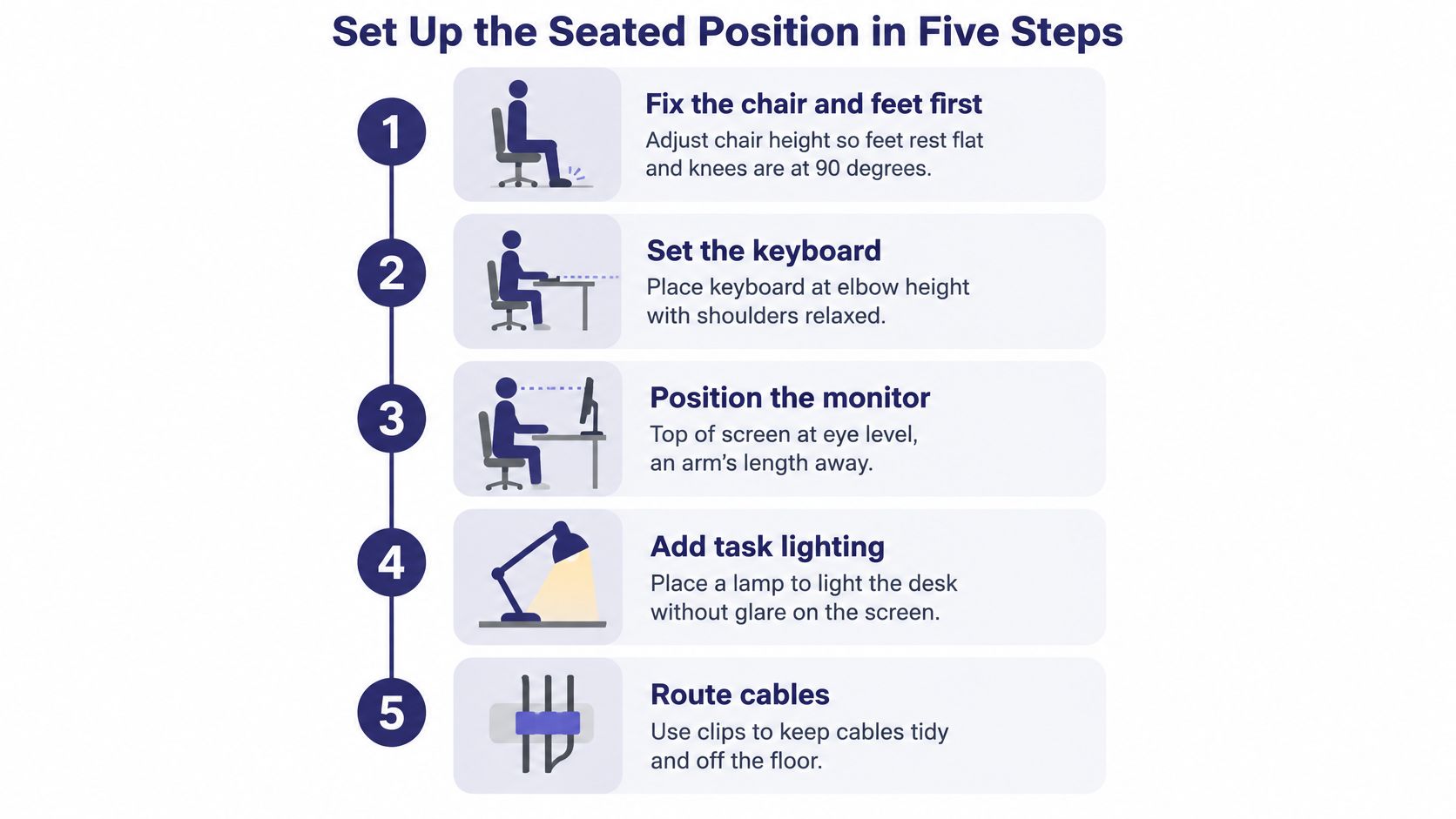
- Confirm the surface is deep enough. Use the monitor distance from the reference table. A shallow top is the usual reason a screen ends up too close, and it's cheaper to solve with a monitor arm than with a new desk in many rooms.
- Sit with feet and back supported. Feet flat or on a footrest, back against the chair. Common slip: adjusting the keyboard before the chair, which leaves you reaching down or up all day without noticing why.
- Bring the keyboard to elbow height. Elbows near the torso at about 90 to 100 degrees. OSHA's workstation purchasing guide gives a keyboard height of 22 to 30 inches for seated work and 36 to 46.5 inches standing. Common slip: a keyboard pushed too far back, so the shoulders round forward to reach it.
- Put the primary monitor squarely in front of you. Not angled toward the middle of the room, not offset to make space for a notebook. Straight ahead of the position you sit in most of the day.
- Set the top of the screen at or slightly below eye level. Common slip: a monitor perched high on books or a stand, which tips the head back and shortens the neck.
Quick check: sit exactly as you normally sit, raise one arm straight out, and touch the screen. If your fingertips reach the glass without leaning, the distance is close. If you have to stretch or duck forward, it isn't.
A sit-stand desk changes one thing only: it lets you reproduce the elbow-height relationship while standing. The practical target stays elbow height, not a fixed dimension printed on a spec sheet.
A good result looks unremarkable. Feet supported, shoulders relaxed, screen readable without leaning forward or back, wrists flat. If the setup draws attention to itself, something is still compensating.
Arrange Lights, Storage and Cables Around the Screen
Once the primary monitor is in place, everything else gets arranged around it rather than next to it. Screen first, then light, then storage, then cables.
Put the second screen beside the primary one
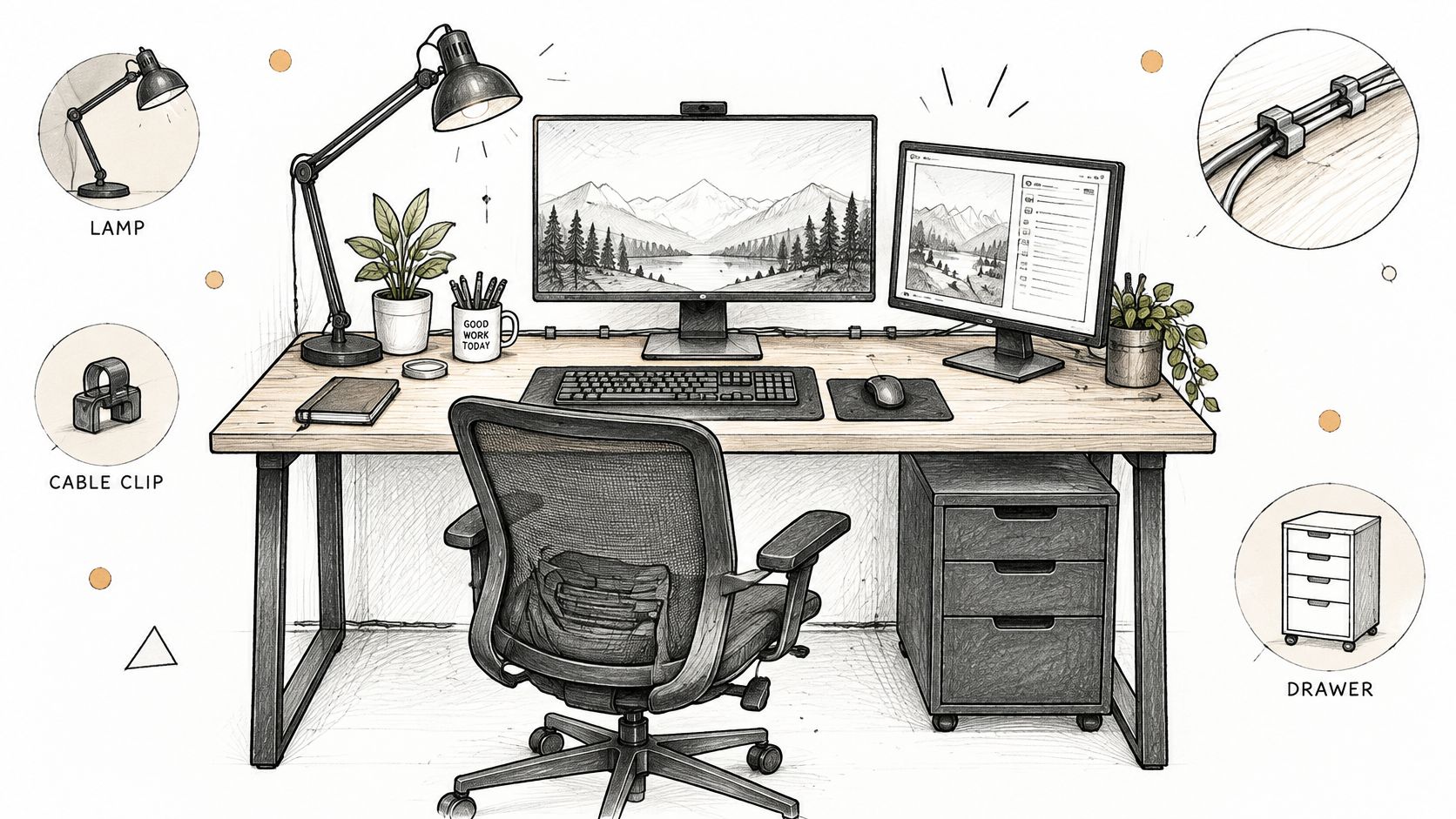
The OSHA monitor placement guidance is specific about this: the primary monitor should sit directly in front of the user, with additional screens positioned beside it. Centering the pair so the seam falls in the middle of your vision leaves the main screen off to one side, and you end up rotating your neck toward it hundreds of times a day. Decide which screen gets most of your attention, place that one dead ahead, and arrange the other around it. If both are used equally, put them side by side within a comfortable viewing angle so head movement stays small.
Light from the side, not into the glass
A task lamp should light the work surface, not the screen. Position it so the pool of light falls across the keyboard and any papers, with the shade below eye level so it doesn't shine into your face. For daylight, a monitor set roughly at right angles to a window usually reduces glare, because the bright surface stays out of your field of view. Room layout decides the exact arrangement, and blinds or a sheer curtain are the cheapest fix when the geometry won't cooperate.
Storage within reach, cables out of sight
Keep the notebook, phone and mouse inside the arc your hand covers without stretching. Everything used weekly rather than hourly can live in a drawer or on a shelf, and in a shared room, closed or lockable storage matters more than open shelving. For cables, run power and data along the back edge with clips or a tray, leave slack near the monitor so it can be raised or swivelled, and put the power strip somewhere you can reach without dragging the desk out.
The last test is a reach audit. Sit in your usual position and check that mouse, keyboard, notebook and phone can all be reached without rolling the shoulder forward. Anything you have to lean for is in the wrong place by definition.
Making a Kitchen Table or Shared Room Work
A dining table isn't a desk, but it can be a workstation once you stop treating the laptop as the whole system. The goal is to borrow the surface without wrecking it for dinner.
- Measure the table and the seat together. Table height means nothing on its own. If the chair adjusts, set it so the keyboard lands in the seated range and your elbows stay near your torso. If the chair is fixed and the table is high, a cushion raises you; if the table is low, a footrest keeps your feet supported instead of dangling.
- Separate the screen from the keyboard. This is the single highest-value change at a shared table. A laptop alone on a low surface pulls your head and neck forward and down for hours. Put the laptop on a riser or a stack of books so the screen top sits near eye level, then add a compact external keyboard and mouse at elbow height.
- Decide what leaves the table when the workday ends. A monitor on a small stand, a laptop on a tray and a caddy for the keyboard and cables mean the surface clears in under a minute. Anything that takes longer than that stops happening by the second week.
- Set a two-minute reset. Keyboard and mouse into the caddy, cables coiled and clipped, notebook into a drawer or closet. The room returns to its other job, and you stop resenting the desk for taking it over.
A fold-away table or a narrow desk suits a room with several uses, because you can measure its footprint against the walkway before you buy rather than after.
Fix Pain and Clutter Without Replacing Furniture
Most discomfort at a home desk traces back to one or two adjustable elements, not to the desk itself. The 2025 workstation pain research found that 37% of people working from home did not use a designated work desk, and that uncomfortable chairs or desks were blamed 10 percentage points more often at home than in the office. When the surface is a kitchen table, the chair is a dining chair and nothing adjusts, that gap makes sense.
| Symptom | Likely cause | Fix |
|---|---|---|
| Neck strain by late afternoon | Monitor too high or centred on the wrong screen | Lower the top of the screen to eye level and place the primary monitor directly in front |
| Wrist or hand discomfort | Keyboard too high or too far from the body | Bring the keyboard closer so elbows stay near the torso at about 90 to 100 degrees |
| Shoulder tension | Keyboard sitting above elbow level | Lower the keyboard or raise the chair, and use a footrest if the feet dangle |
| Legs cramped or blocked | Desk frame or drawer under the desktop | Clear the space under the desk or choose a desk with more leg clearance |
| Eye strain or headaches | Screen glare or brightness too high | Adjust monitor angle away from direct light and add task lighting |
Sort the fixes by how long they take to judge. Same-day adjustments include lowering the screen, pulling the keyboard closer, adding a footrest or cushion, and turning the monitor away from direct light. You'll know within an hour whether they help.
Week-long trials cover anything that changes the furniture: a different chair, a different desk height, a laptop riser with an external keyboard. Three days isn't enough, because a new position feels unfamiliar before it feels better. Give each change a week of real working days before you judge it.
Keep a short log for two weeks: the time discomfort starts, where it sits, and what you changed the day before. A pattern beats a guess, and it stops you buying a third chair to solve a monitor problem.
Plan the Desk Zone Before You Buy
Before choosing a desk, check how the chair, screen and keyboard will fit together in the room. Measure the available space, then use these four details to compare options:
- Desk footprint and walkway. Measure the desk width and depth, the space the chair needs to roll back, and the path past it. Mark the proposed footprint with tape and walk around it.
- Chair seat height and adjustment. The seat height affects where your elbows meet the desktop, so check whether the chair can adjust to a comfortable working position.
- Monitor size and number of screens. A second screen takes up more width and needs a layout that keeps the primary display in front of you.
- Daily clearing or permanent setup. If the desk must be cleared after work, consider how easily the keyboard, screen and other items can be moved or stored.
In a tight room, a smaller desk with cable management may leave more usable space than a large executive desk. A sit-stand model suits a setup where you expect to change position during the day; a fixed desk may be a better fit if the chair and keyboard already sit at comfortable heights and the arrangement will stay put.
Sit at a desk before buying it. Check the height, knee clearance and cable access in person, since each affects how the chair, screen and keyboard work as a set.
Woodstock Furniture & Mattress Outlet offers design services to help plan a desk in a room that serves more than one purpose. It also sells furniture, mattresses and home décor, with delivery options for customers. Bring your measurements and try desks at a height that works with your chair. Visit a Woodstock Furniture & Mattress Outlet store in Woodstock/Acworth, Canton, Dallas/Hiram, Rome, Covington or Douglasville to see what's available and plan a visit.